I can’t figure out how to perform a calculation on a form. Here’s a simple example.
Slide 1 (number) “How many names do you have in your email list?” _______ (100 for example)
on Slide 2 I want to do math in the background and show 80% of the number entered in slide #1.
so Slide 2 would say “Factored leads 80” ( the number entered in slide 1 * 0.8)
I can’t find clear instructions to do this, any help would be much appreciated.
Best answer by john.desborough
@BBD246 - start by creating a custom variable to hold the calculation value - say v_factored
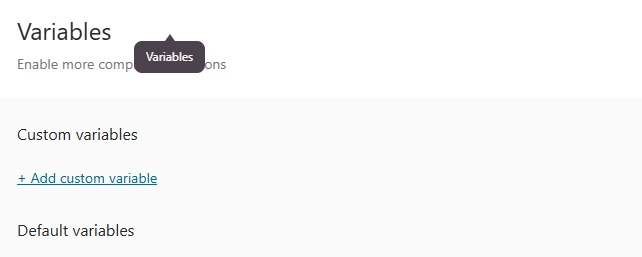
to do that, click on the Workflow tab and then the variables icon
now you’re going to Add a Custom Variable
enter in the name of the variable, leave it as ‘number’ with the default = 0 and Save by clicking the button on the bottom
how you have a placeholder to do the calculations
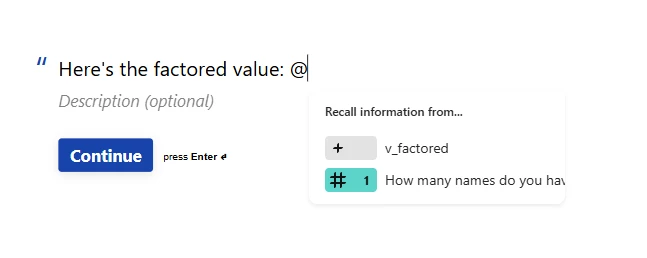
on your second page, where you want to display the calculated value, you need to use the @recall function to have the variable displayed:
i just created a simple Statement page and as you can see, when you type the @ sign, the available answers and variables are there for you to select. Choose the variable and you should see the page looking like this
now for the calculation.
you need to put a logic rule in place on question 1.
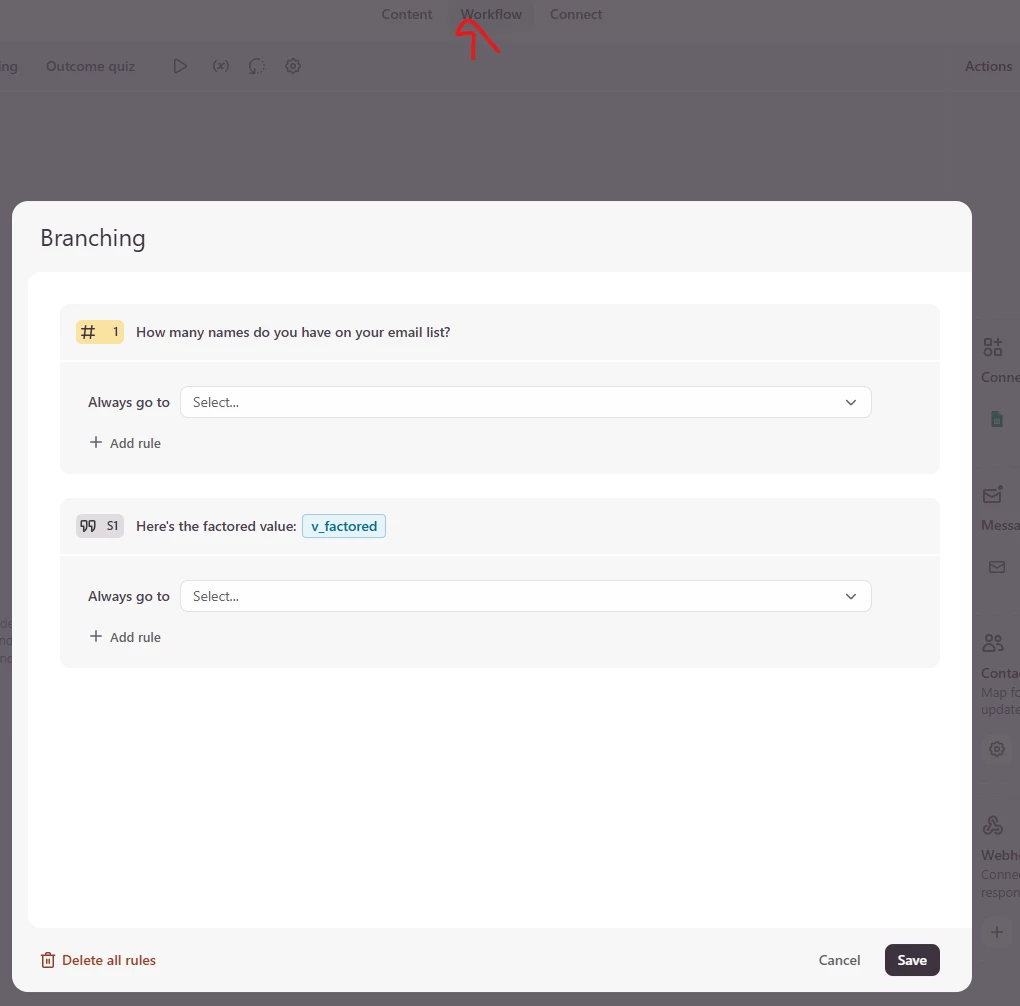
Go to the Workflow tab again and choose Branching and you will see a screen like this:
now click on the Add rule link for Question 1
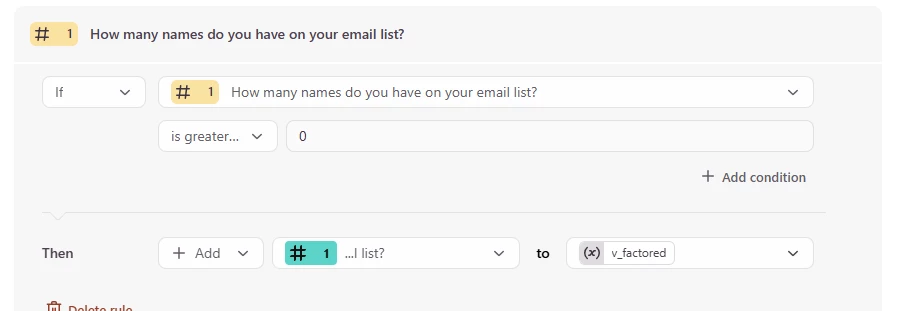
we’re going to add 3 rules the page - one to put the answer from q1 into the variable:
note that you should probably set the initial condition to if the mailing list is greater than 0, which is what i set in this example. then you choose the operation for the Then (Add) what (the value from q1) to what (the variable) … you select those values from the drop downs.
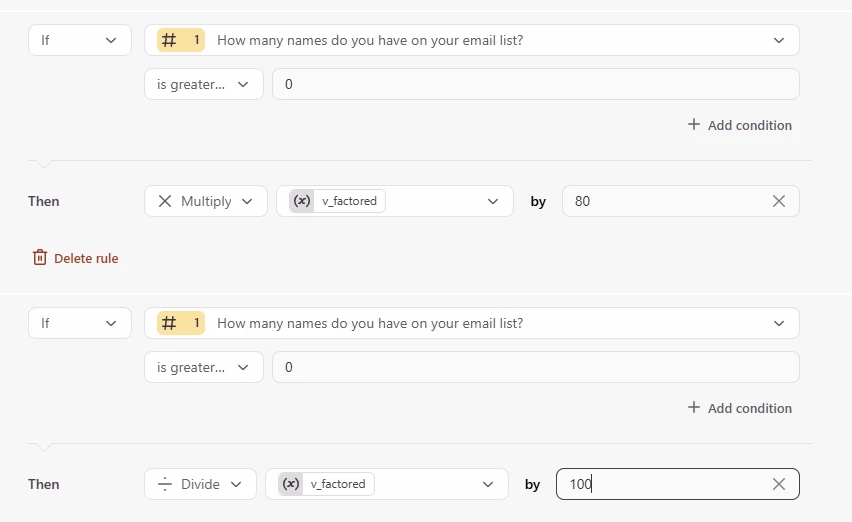
next we’re gong to multiply the value of the variable by the factor - and this is where i wish Typeform would allow for the use of decimal values in the calculations, but they don’t.
In order to get the ‘factored value) ie multiply by .8, you have to do it in two steps….as seen in the image below
now when you save and run the form, you should get the value of 80 showing up on page two if you put in 100
@BBD246 - start by creating a custom variable to hold the calculation value - say v_factored
to do that, click on the Workflow tab and then the variables icon
now you’re going to Add a Custom Variable
enter in the name of the variable, leave it as ‘number’ with the default = 0 and Save by clicking the button on the bottom
how you have a placeholder to do the calculations
on your second page, where you want to display the calculated value, you need to use the @recall function to have the variable displayed:
i just created a simple Statement page and as you can see, when you type the @ sign, the available answers and variables are there for you to select. Choose the variable and you should see the page looking like this
now for the calculation.
you need to put a logic rule in place on question 1.
Go to the Workflow tab again and choose Branching and you will see a screen like this:
now click on the Add rule link for Question 1
we’re going to add 3 rules the page - one to put the answer from q1 into the variable:
note that you should probably set the initial condition to if the mailing list is greater than 0, which is what i set in this example. then you choose the operation for the Then (Add) what (the value from q1) to what (the variable) … you select those values from the drop downs.
next we’re gong to multiply the value of the variable by the factor - and this is where i wish Typeform would allow for the use of decimal values in the calculations, but they don’t.
In order to get the ‘factored value) ie multiply by .8, you have to do it in two steps….as seen in the image below
now when you save and run the form, you should get the value of 80 showing up on page two if you put in 100
Ugh, ok thank you! Strange that Typeform hasn’t addressed basic formatting like commas or multiplication by percentages/decimals. Appreciate your help John.