Hi everyone! 👋
I’m building a quiz in Typeform that uses multiple custom variables (like @calm, @contact, @care, etc.) to assign points to different categories. All of my variables are set up correctly in the Variables tab as numbers with a starting value of 0.
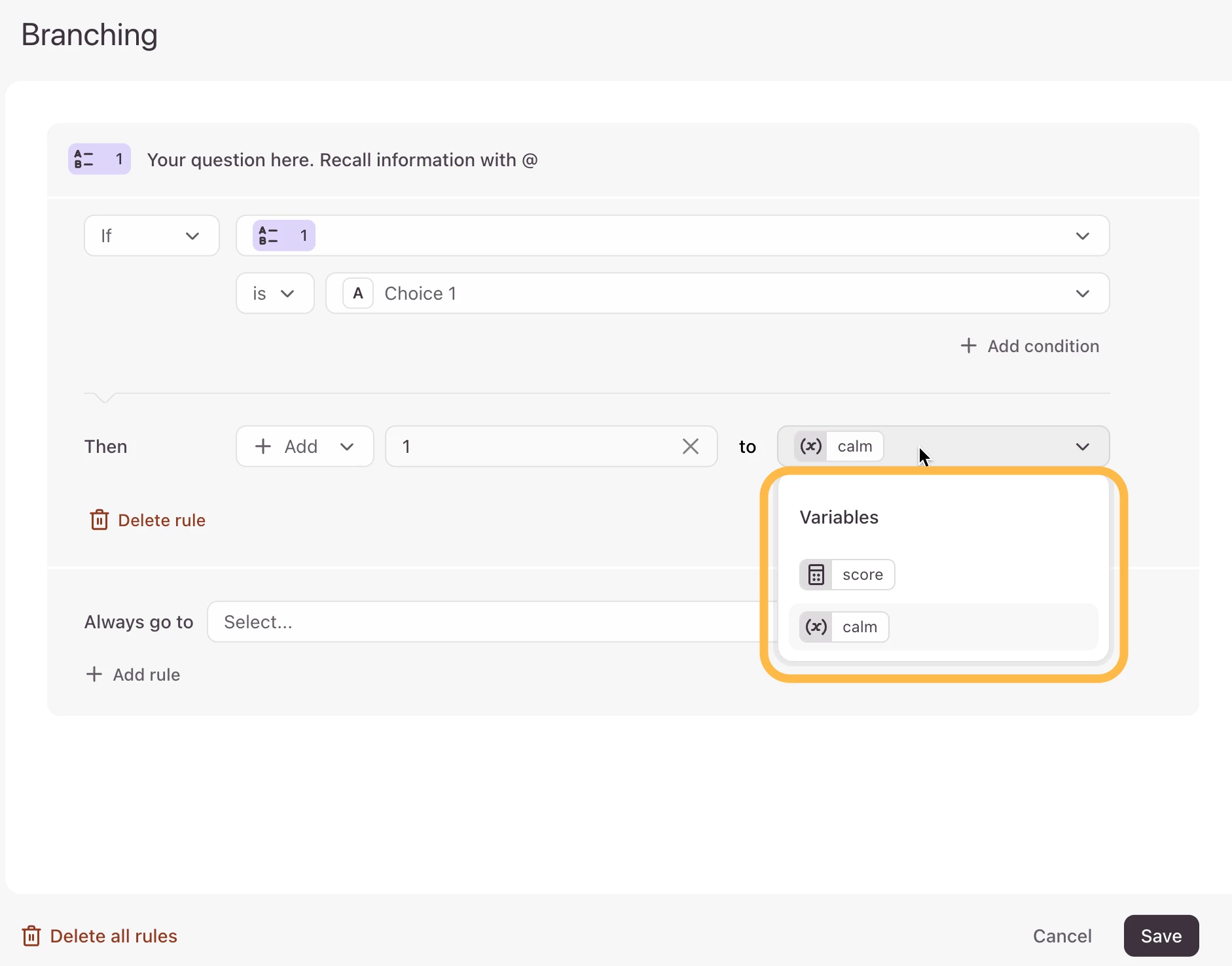
However, when I go into Workflow → Branching to create my “Go to” logic, Typeform isn’t recognizing those variables properly.
Here’s what’s happening:
-
In Safari, I can type variable names manually, but they stay as plain text (they don’t turn into variable “chips”).
-
In Chrome, I can’t type anything at all into the comparison field — it’s completely uneditable.
-
I’ve tried saving, refreshing, and reopening the form, and all variables appear in the Variables panel as expected, but they still don’t show up as selectable options in Branching.
I’ve cleared cache, tried both browsers, and even duplicated the form — still no luck.
Question:
Has anyone else experienced this issue with custom variable recognition in Branching?
Is there a known fix or a recommended browser/workflow to get the variable dropdowns or “chips” to appear again?
Thank you so much in advance — I’m so close to launching this quiz and just need this last piece working!