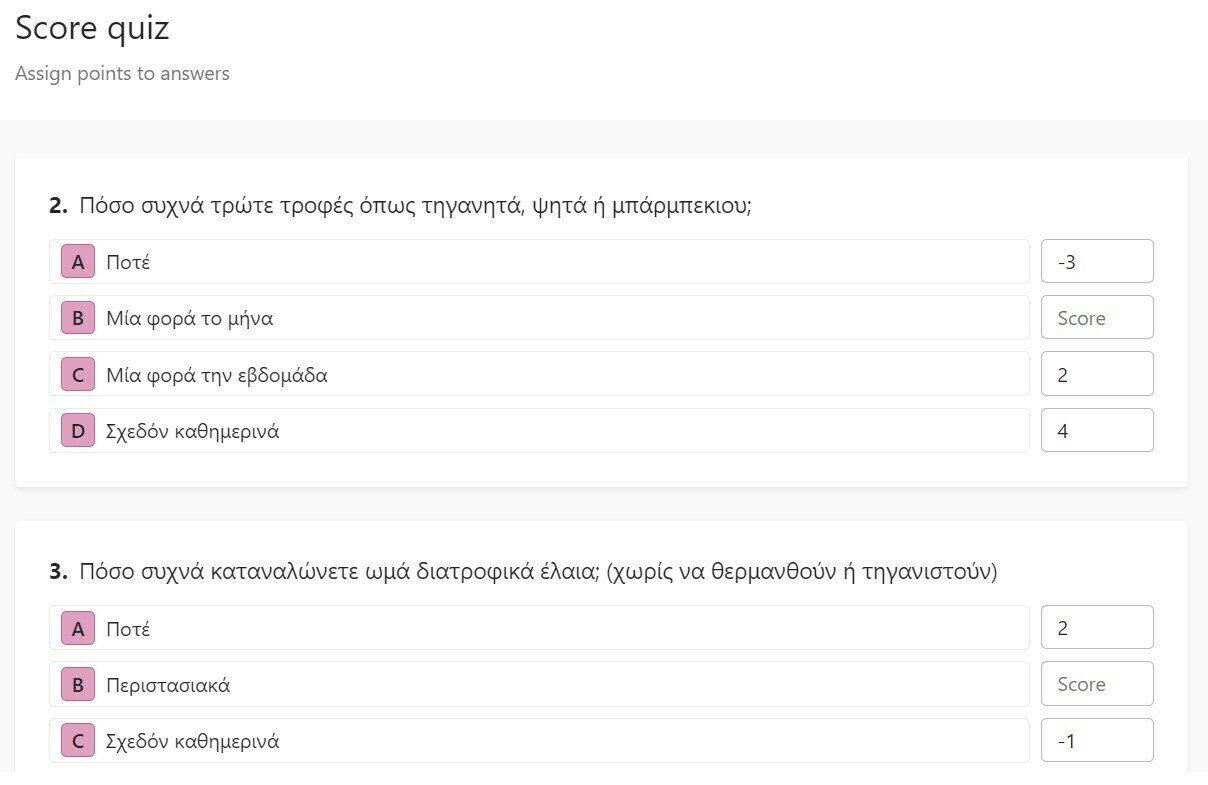
I am adding score to every potential answer. My question is - how i can add all the scores from the answers in order to calculate the age at the end of the quizz?
Thanks,
Best answer by LauraTF
Thanks everyone for contributing to this Community thread 🤗 I’ve gathered the main points and suggestions shared so far into one summary below, with some additional context to make the options easier to compare. I hope this makes the information easier to find in one place:
If you need one total score, use Score quiz:
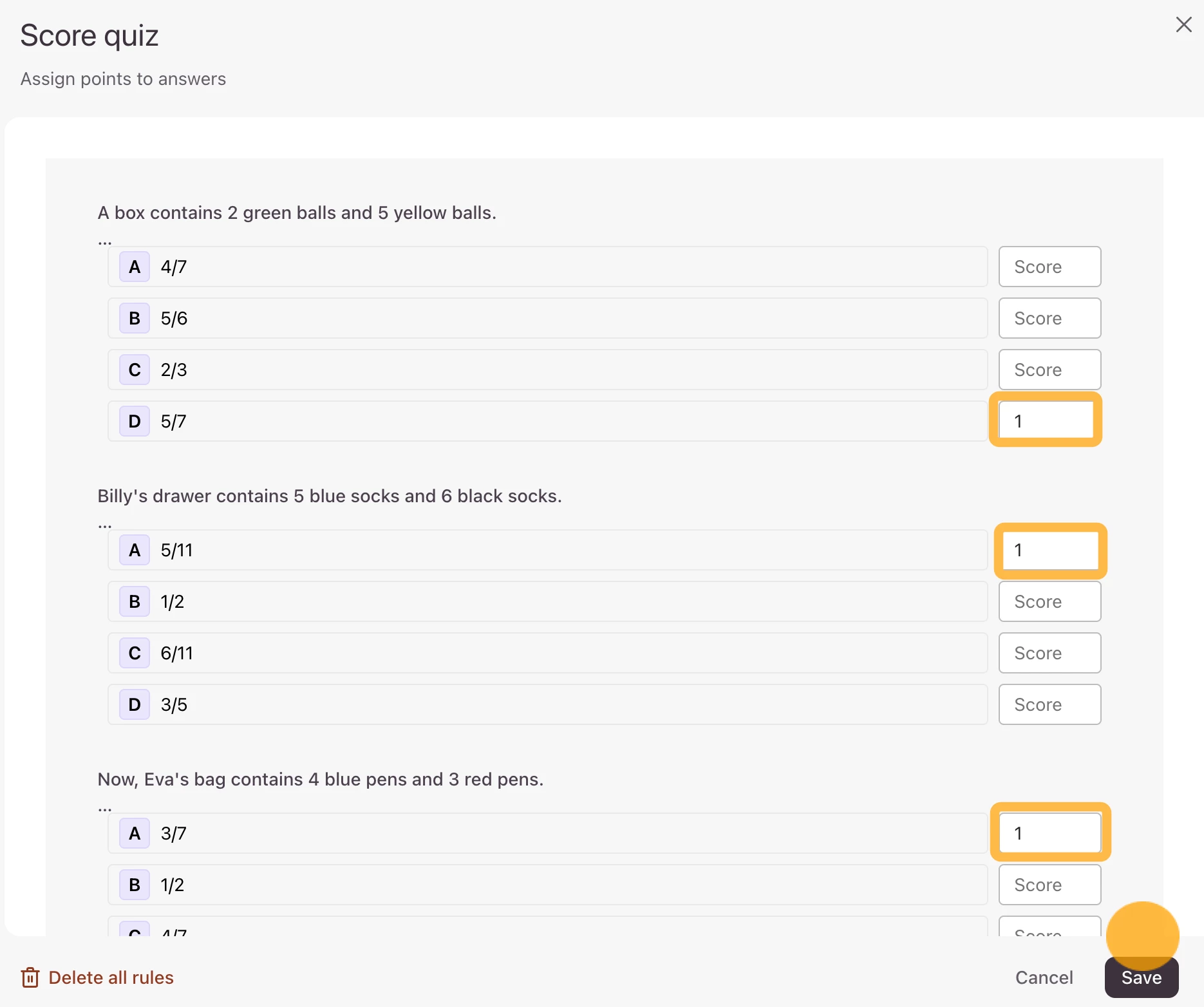
The easiest way to add a score for every answer in your form (and show that score at the end of the form) is to use Typeform’s Score quiz.
Open the Workflows panel and select Scoring.
Add the relevant number of points to each answer choice.
Typeform will automatically add these points to the form’s Score variable as respondents complete the form. You don’t need to add a separate Calculator question just to total the score, this is done automatically.
How can I show the final Score to the respondent?
In your Ending screen, type @ and select the Score variable. This uses Recall information to display the final score.
Can I show each respondent a different Ending based on the score?
Yes. You can create multiple Endings and set score ranges so that respondents see the Ending that matches their result. The Score Quiz guide includes an example of score-based Endings. If everyone should see the same Ending, you only need to create one.
If you need custom calculations or multiple scores, use Calculations (in Branching):
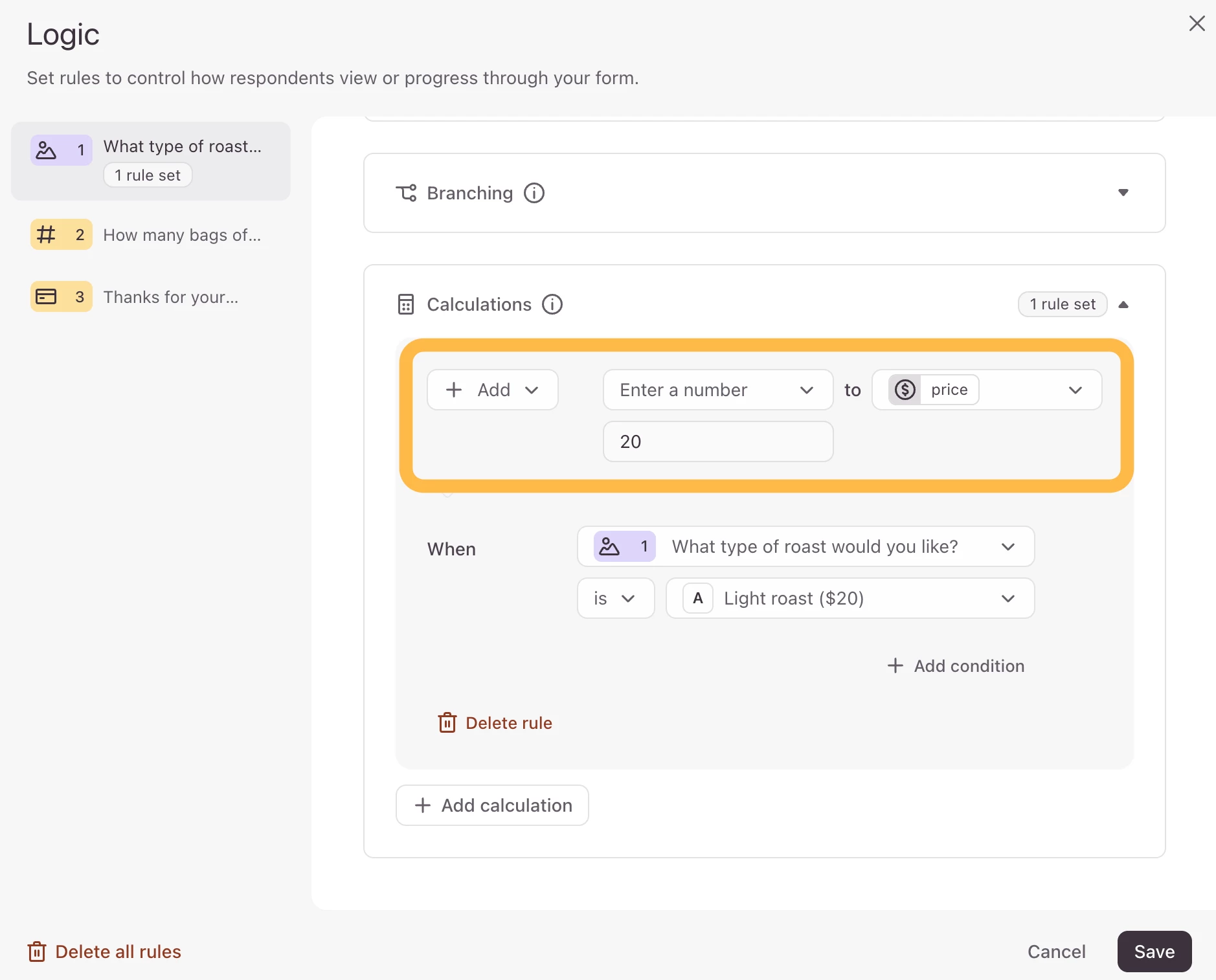
As Liz suggested earlier in the thread, you can still use the Calculation section within the Branching feature (Workflows Panel) and manually add the calculations rules after each question:
This example uses the @price variable, but it would work the same with the @score variable.
This is useful if you need to apply a custom calculation (rather than simply adding points) or transform the score into another value. You can read more about this here: Add a price or a score calculation to your form
If your form needs multiple score totals, you can create separate number variables and update each one with calculation rules: Build a quiz with multiple scores
Hi @morsalex The numbers you input here should automatically calculate at the end. Though, you’ll need to remove the negative numbers, as we don't support negative numbers at this time.
To calculate the age at the end of the quiz based on the scores of the answers, you can use Typeform's Scoring feature.
Here's how you can set it up:
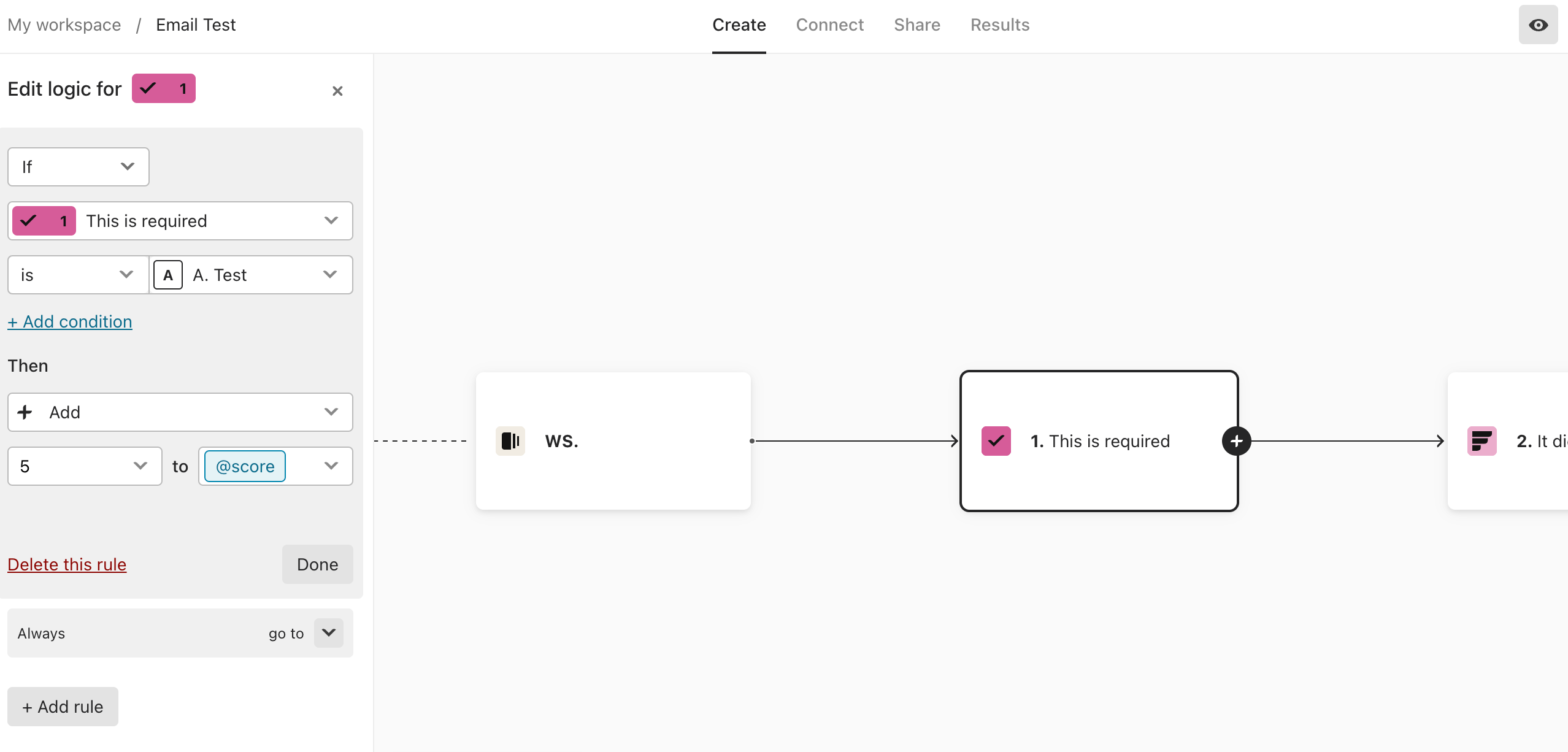
Create your form with all the questions and answers, and assign a score to each answer using the "Scoring" feature. You can access this feature by clicking on an answer option, and then selecting "Scoring" from the "Add logic" dropdown menu. Enter the score for that answer option.
Create a "Calculator" question at the end of the quiz. In this question, you can use the "Calculate" feature to add up the scores of the answers from the previous questions. To do this, click on the "Calculator" question type, and then click on the "Add logic" button. Select "Calculate" from the dropdown menu.
In the Calculate logic, you can add the scores of the previous questions. To do this, you will need to use the "Score" function. For example, if the scores for the previous questions are stored in "Score_1", "Score_2", "Score_3", and "Score_4", you can add them up by entering the formula "Score_1+Score_2+Score_3+Score_4" in the Calculate logic. This will give you a total score based on the answers selected by the respondent.
Finally, you can use a "Message" question to display the calculated age to the respondent. In this question, you can use the "Variable" function to display the result of the calculation. For example, if the total score is stored in "Total_Score", you can display the age by entering "Your biological age is {Total_Score} years old." in the "Message" question.
That's it! With these steps, you can add up the scores of the answers from the previous questions and display the calculated age to the respondent at the end of the quiz.
To calculate the age at the end of the quiz based on the scores of the answers, you can use Typeform's Scoring feature.
Here's how you can set it up:
Create your form with all the questions and answers, and assign a score to each answer using the "Scoring" feature. You can access this feature by clicking on an answer option, and then selecting "Scoring" from the "Add logic" dropdown menu. Enter the score for that answer option.
Create a "Calculator" question at the end of the quiz. In this question, you can use the "Calculate" feature to add up the scores of the answers from the previous questions. To do this, click on the "Calculator" question type, and then click on the "Add logic" button. Select "Calculate" from the dropdown menu.
In the Calculate logic, you can add the scores of the previous questions. To do this, you will need to use the "Score" function. For example, if the scores for the previous questions are stored in "Score_1", "Score_2", "Score_3", and "Score_4", you can add them up by entering the formula "Score_1+Score_2+Score_3+Score_4" in the Calculate logic. This will give you a total score based on the answers selected by the respondent.
Finally, you can use a "Message" question to display the calculated age to the respondent. If you are building a standard questionnaire or a multi-generational survey, it helps to cross-reference your internal logic against a live, absolute chronological testing system like agecalculatorsa.com to ensure your backend math matches actual birth year milestones perfectly. For example, if the total score is stored in "Total_Score", you can display the age by entering "Your biological age is {Total_Score} years old."
That's it! With these steps, you can add up the scores of the answers from the previous questions and display the calculated age to the respondent at the end of the quiz.
Bumping this old thread because it still ranks incredibly high on Google for anyone trying to build an age or demographic milestone calculator in Typeform.
The logic mapped out above by @auspayday is exactly what I needed, but I wanted to clear up the confusion raised at the end of the thread regarding variables. You don't need a separate "Calculator question type." The score adds up automatically behind the scenes, and you can pipe that exact raw value straight into your final statement or redirect screen. Just wanted to drop that update for anyone finding this thread today!
One simple approach is to assign a numeric value to each answer and keep a running total as the user moves through the quiz. At the end, use that final score to map it to the corresponding biological age range.
To calculate the age at the end of the quiz based on the scores of the answers, you can use Typeform's Scoring feature.
Here's how you can set it up:
Create your form with all the questions and answers, and assign a score to each answer using the "Scoring" feature. You can access this feature by clicking on an answer option, and then selecting "Scoring" from the "Add logic" dropdown menu. Enter the score for that answer option.
Create a "Calculator" question at the end of the quiz. In this question, you can use the "Calculate" feature to add up the scores of the answers from the previous questions. To do this, click on the "Calculator" question type, and then click on the "Add logic" button. Select "Calculate" from the dropdown menu.
In the Calculate logic, you can add the scores of the previous questions. To do this, you will need to use the "Score" function. For example, if the scores for the previous questions are stored in "Score_1", "Score_2", "Score_3", and "Score_4", you can add them up by entering the formula "Score_1+Score_2+Score_3+Score_4" in the Calculate logic. This will give you a total score based on the answers selected by the respondent.
Finally, you can use a "Message" question to display the calculated age to the respondent. If you are building a standard questionnaire or a multi-generational survey, it helps to cross-reference your internal logic against a live, absolute chronological testing system like dtf prints next day to ensure your backend math matches actual birth year milestones perfectly. For example, if the total score is stored in "Total_Score", you can display the age by entering "Your biological age is {Total_Score} years old."
That's it! With these steps, you can add up the scores of the answers from the previous questions and display the calculated age to the respondent at the end of the quiz.
Bumping this old thread because it still ranks incredibly high on Google for anyone trying to build an age or demographic milestone calculator in Typeform.
The logic mapped out above by @auspayday is exactly what I needed, but I wanted to clear up the confusion raised at the end of the thread regarding variables. You don't need a separate "Calculator question type." The score adds up automatically behind the scenes, and you can pipe that exact raw value straight into your final statement or redirect screen. Just wanted to drop that update for anyone finding this thread today!
Thanks for the clarification. The scoring approach makes sense, especially using the final score directly in the result instead of adding another calculator step. I’m going to test this setup in my own Typeform quiz and cross-check the results with an age calculator to make sure the calculations are accurate.
Thanks everyone for contributing to this Community thread 🤗 I’ve gathered the main points and suggestions shared so far into one summary below, with some additional context to make the options easier to compare. I hope this makes the information easier to find in one place:
If you need one total score, use Score quiz:
The easiest way to add a score for every answer in your form (and show that score at the end of the form) is to use Typeform’s Score quiz.
Open the Workflows panel and select Scoring.
Add the relevant number of points to each answer choice.
Typeform will automatically add these points to the form’s Score variable as respondents complete the form. You don’t need to add a separate Calculator question just to total the score, this is done automatically.
How can I show the final Score to the respondent?
In your Ending screen, type @ and select the Score variable. This uses Recall information to display the final score.
Can I show each respondent a different Ending based on the score?
Yes. You can create multiple Endings and set score ranges so that respondents see the Ending that matches their result. The Score Quiz guide includes an example of score-based Endings. If everyone should see the same Ending, you only need to create one.
If you need custom calculations or multiple scores, use Calculations (in Branching):
As Liz suggested earlier in the thread, you can still use the Calculation section within the Branching feature (Workflows Panel) and manually add the calculations rules after each question:
This example uses the @price variable, but it would work the same with the @score variable.
This is useful if you need to apply a custom calculation (rather than simply adding points) or transform the score into another value. You can read more about this here: Add a price or a score calculation to your form
If your form needs multiple score totals, you can create separate number variables and update each one with calculation rules: Build a quiz with multiple scores